Why has this trend come about? The two most likely reasons:
- Simple 2D games are much cheaper to produce than big AAA titles, making them a viable alternative for smaller independent game studios who can't afford to spend as much as larger places such as Bioware, Epic, etc.
- Gamers love nostalgia.
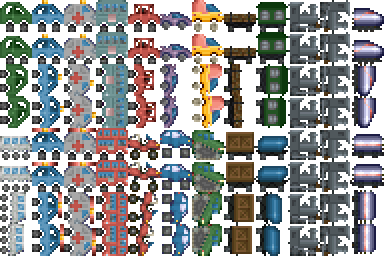 |
| Example of a sprite sheet by author "Kriplozoik". From the Wikipedia article "Sprite (computer graphics)". Protected under CCL. |
For those beginning game development, I highly recommend the pygame game library for Python. It is extremely easy to pick up, with great documentation and a flexible API that lets a beginner game programmer do almost anything he/she wants. I first encountered it last semester in my Intro to Game Design Class at JHU, in which which we were required to use pygame. At first I thought it very peculiar to use an interpreted language in game design, but I quickly found that on most modern machines it was indeed fast enough.
Converting a sprite sheet like the one above into several individual images is fairly easy. Since all the sprites are evenly spaced apart, all you need to do was write a function to which you fed it the number of rows and columns within the sprite sheet, and it would be able to evenly divide up the image and from that, create several "sub-images" and string them together to create an animation. Here's a snippet of python code that would do just that. All you pass to the function is the name of the image file, and the number of rows and columns. In fact, the code I've written here allows for a sub-set of a sprite sheet if you wanted it, allowing you to pass optional start and end arguments which are 2-tuples formatted as (row, column) , for which the row and column values are both zero-based. Feel free to use this code as you see fit (just make sure to credit me :) ).
 import pygame
 def grab_sprite_sheet(filename, rows, columns, **kwargs):
   """Grabs images from a sprite sheet, converts them to pygame images
   (surfaces), then puts them all in a list and returns that list.
   Make sure you call pygame.display.set_mode() (and probably pygame.init())
   before calling this function.
   """
   ##This line assumes you're working with some per-pixel format with a
   ##transparent background. If not, use .convert() instead and
   ##.set_colorkey(whatever the background color is) on the newly
   ##created surface object.
   base_image = pygame.image.load(filename).convert_alpha()
   sprite_width = base_image.get_width() / columns
   sprite_height = base_image.get_height() / rows
   ##If kwargs contains all the needed sub-set arguments, uses that.
   ##Else, use default values.
   current_row, current_column = kwargs.get('start', (0, 0))
   end_row, end_column = kwargs.get('end', (rows - 1, columns - 1))
   image_list = []
   ##Creates the Rect object we will be using in base_image.subsurface()
   ##to capture our sub-images.
   current_frame = pygame.Rect(0, 0, sprite_width, sprite_height)
   while current_row <= end_row:
     current_frame.top = sprite_height * current_row
     while (current_row < end_row and current_column < columns) or (current_row == end_row and current_column <= end_column):
       current_frame.left = sprite_width * current_column
       image_list.append(base_image.subsurface(current_frame))
       current_column += 1
     current_column = 0
     current_row += 1
   return image_list
Examples of use (make sure you import the function from wherever you put it before trying to run this code :p ):
 import pygame

 pygame.init()
 pygame.display.set_mode((800, 600))

 sprites = []

 ##Grabs a whole sprite sheet, one which has 4 rows and 5 columns:
 sprites = grab_sprite_sheet('walksequence_spritesheet.png', 5, 6)
 ##Grabs all images STARTING FROM the first image of the second
 ##row:
 sprites = grab_sprite_sheet('walksequence_spritesheet.png', 5, 6, start=(1, 0))
 ##Grabs all images UP TO AND INCLUDING the second image of the third
 ##row:
 sprites = grab_sprite_sheet('walksequence_spritesheet.png', 5, 6, end=(2, 1))
 ##Gets all images between the first image of the second row and
 ##the second image of the third row (inclusive).
 sprites = grab_sprite_sheet('walksequence_spritesheet.png', 5, 6, start=(0, 1), end=(2, 1))

 pygame.quit()
Stay tuned as in my next tutorial I will show you an even more powerful tool for parsing more complicated sprite sheets!

No comments:
Post a Comment